
How to Update Mobile Threat Protections for Field Teams

Securing field teams’ mobile devices against today’s threat landscape requires more than periodic OS patches. The most effective approach combines Microsoft Intune’s Mobile Threat Defense (MTD) integration with properly configured connectors, app protection policies, and continuous monitoring. Field devices face a uniquely hostile environment: mobile malware transactions increased 67% year-over-year, and AI-powered phishing is now five times more convincing than traditional human-written attacks. Getting your MTD configuration right is not optional.
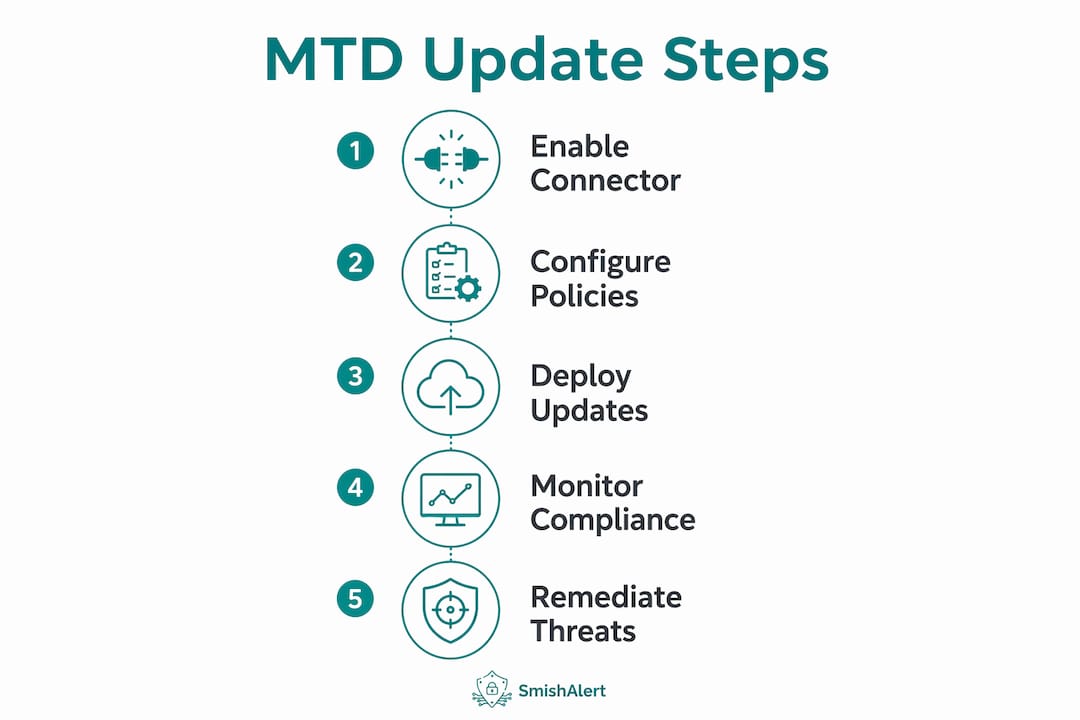
The core update process for field team mobile threat protection covers these elements:
- Enable and configure the MTD connector in the Microsoft Intune admin center
- Select and deploy an MTD partner app to enrolled devices
- Create app protection policies that enforce risk-level thresholds
- Configure data sharing (App Sync, Certificate Sync) for richer threat telemetry
- Set Conditional Access rules to block corporate resources from compromised devices
- Enable enhanced security permissions on Android Enterprise devices to prevent app suspension
- Monitor threat reports and compliance dashboards continuously
- Define remediation workflows for each threat severity level
How to update mobile threat protections for field teams using the MTD connector
The MTD connector is the communication channel between Microsoft Intune and your chosen MTD vendor. Without it, Intune has no visibility into device-level threat signals, and your compliance policies are flying blind.
To enable and configure the connector:
- Sign in to the Microsoft Intune admin center at intune.microsoft.com with Global Administrator or Intune Administrator credentials.
- Navigate to Tenant administration > Connectors and tokens > Mobile Threat Defense.
- Select Add and choose your MTD partner from the list of supported MTD vendors, which includes Microsoft Defender for Endpoint, Zimperium, Sophos Mobile, SentinelOne, and others for Android and iOS/iPadOS.
- Configure toggle options in the connector settings. Key toggles include connecting Android and iOS/iPadOS devices for compliance evaluation, enabling app protection policy evaluation for unenrolled devices, and setting the number of days before a device is marked non-compliant if the MTD app stops reporting.
- Enable enhanced security permissions for Android Enterprise fully managed and corporate-owned work profile devices. This grants the MTD app exemptions from Android’s power management, preventing hibernation or suspension that would create coverage gaps.
- Save the connector configuration and confirm the connection status shows as Active.
Role-based access control matters here. The account enabling the connector needs at minimum the Intune Service Administrator role. Granting broader permissions than necessary to service accounts increases your attack surface, so scope access tightly.
A common pitfall: deploying multiple MTD vendors for the same platform on a single tenant. Intune marks a device non-compliant if any configured MTD app fails to submit a scan result. If you run two vendors on Android and one app fails to check in, every Android device in scope becomes non-compliant. Stick to one MTD vendor per platform unless you are using Microsoft Defender for Endpoint alongside a third-party app with separate compliance policies scoped to different groups.
How to create app protection policies for field devices using MTD data
App protection policies let Intune enforce security on managed apps even on devices that are not formally enrolled, which matters enormously for field teams using personal devices or contractor hardware.
Before creating policies, confirm these prerequisites:
- The MTD connector is active and reporting
- The MTD partner app is deployed to target devices
- Users are licensed for Microsoft Intune
- Target apps (such as Microsoft Outlook, Teams, or Edge) are Intune-managed apps
The policy creation process:
- Go to Apps > App protection policies in the Intune admin center and select Create policy.
- Choose the platform (iOS/iPadOS or Android) and name the policy descriptively, for example “Field-Android-MTD-High.”
- Select the target apps that field workers use to access corporate data.
- Under Data protection settings, configure transfer restrictions, clipboard controls, and screenshot blocking as appropriate for your data classification.
- Navigate to Conditional launch and add the Max allowed threat level condition. Set the value to Low, Medium, or High depending on your risk tolerance. For field teams accessing sensitive data, Low is the recommended threshold.
- Set the action for a threat level violation. Options include Block access, Wipe data, or Warn. For corporate-owned field devices, Block access is the standard enforcement action.
- Assign the policy to the relevant Azure Active Directory groups containing field team users.
Key policy configuration options to review for every deployment:
- Threat level thresholds: Low blocks access at the first sign of compromise; High allows more risk before enforcement triggers
- Grace period: defines how long a non-compliant device retains access before the block takes effect
- Selective wipe: removes only corporate data from the app, leaving personal data intact
- Offline grace period: controls how long an unenrolled device can operate without checking in before access is revoked
For enrolled devices, pair app protection policies with device compliance policies that reference the same MTD risk level. This creates layered enforcement: the compliance policy can trigger Conditional Access, while the app protection policy enforces data controls at the app layer regardless of enrollment status.
What data does Intune collect through MTD integration, and how do you monitor it?
Intune collects two categories of inventory data from MTD partners, both of which are opt-in. No data is shared with your MTD vendor by default.
| Data type | Source | Purpose | Opt-in required |
|---|---|---|---|
| App inventory metadata | iOS/iPadOS enrolled devices | Enables MTD partner to detect risky or malicious apps | Yes (App Sync toggle) |
| Certificate inventory | iOS/iPadOS enrolled devices | Allows detection of certificate-based threats and anomalies | Yes (Certificate Sync toggle) |
| Device compliance status | All enrolled platforms | Feeds compliance policy evaluation and Conditional Access | Automatic once connector is active |
| Threat risk level | All enrolled platforms | Categorizes device risk as Low, Medium, or High | Automatic once MTD app reports |
App Sync and Certificate Sync are enabled in the MTD connector settings. Once active, your MTD partner receives app and certificate inventories from corporate and personally owned iOS/iPadOS devices during each device check-in interval.
Monitoring best practices for Intune administrators managing field teams:
- Review the Device compliance report under Reports > Device compliance daily to catch non-reporting devices before they become a blind spot
- Use the MTD partner console alongside Intune reports; most partners surface threat categorization and device-level telemetry that Intune’s dashboard does not replicate
- Set up alert rules in Intune or your SIEM to notify the security team when devices exceed a defined threat threshold
- Track the “last check-in” timestamp for field devices; a device that has not checked in for more than the configured non-compliance window is a gap in your coverage
- Audit App Sync and Certificate Sync settings quarterly to confirm they remain enabled after any tenant-level configuration changes
Sample scenarios showing how MTD policies protect field devices
Field teams encounter threats that office-based workers rarely face: unsecured hotel Wi-Fi, rogue access points at job sites, and SMS phishing campaigns targeting workers by role. The following scenarios illustrate how MTD policies translate into concrete protection.

Scenario 1: Network-based man-in-the-middle attack A field technician connects to an unsecured Wi-Fi network at a client site. The MTD app detects a man-in-the-middle attack in progress and reports a High risk level to Intune. The device compliance policy evaluates the risk level, marks the device non-compliant, and Conditional Access immediately blocks the device from accessing SharePoint and Exchange. The technician receives a notification to disconnect from the network and reconnect via the corporate VPN.
Scenario 2: Malicious app detected on an unenrolled device A contractor using a personal Android device has the MTD app installed but the device is not formally enrolled. The MTD app detects a sideloaded application with known malware signatures. The app protection policy triggers a Block access action, preventing the contractor from opening corporate email in Outlook until the malicious app is removed.
Scenario 3: Smishing attack targeting a field worker Smishing constitutes more than two-thirds of mishing attacks, and field workers are a high-value target because they often act quickly under operational pressure. A worker receives an SMS impersonating their IT department requesting credential verification. The MTD app flags the phishing URL, raises the device risk level, and Intune enforces a Warn action, prompting the user to report the message before proceeding.
Field teams are not just a remote extension of the office. They are a distinct attack surface. Policies built for desk-based users often fail in the field because they do not account for intermittent connectivity, personal device use, and the social engineering tactics specifically designed to exploit workers under time pressure.
Remediation workflows should be defined before threats occur, not after. For each threat severity level, document the expected Intune action, the user notification message, the IT escalation path, and the criteria for restoring access. Linking these workflows to your SIEM or ticketing system reduces response time and prevents threats from stalling in an unassigned queue.
Best practices and emerging trends in mobile threat protection for field teams
Defense-in-depth for field team mobile security means layering controls across the device, app, network, and identity layers simultaneously. No single control is sufficient.
Smishing and AI-powered phishing represent the fastest-growing threat vectors for mobile workers. AI-generated phishing messages are now five times more convincing than traditional attacks, which means user awareness training alone cannot carry the load. Technical controls at the MTD and app protection layer must catch what users miss.
Emerging trends and defensive measures security teams should prioritize in 2026:
- AI-driven SOC automation: Mobile SOC agents automate the correlation and investigation of mobile telemetry, compressing incident investigation from days to minutes and letting analysts focus on verified threats
- Zero-touch enrollment via UEM: Unified endpoint management platforms enable consistent, risk-based access decisions across all field devices with minimal manual configuration
- Conditional Access for unenrolled devices: Extending MTD-based Conditional Access to personal devices closes the coverage gap that BYOD policies often leave open
- Messaging channel visibility: SMS, iMessage, and WhatsApp phishing operate entirely outside the corporate email perimeter; organizations need dedicated tooling to surface these threats, which is where platforms like Smishalert provide visibility that Intune alone cannot deliver
- Field CISO alignment: Translating executive security policy into practical mobile workflows that field staff can follow without productivity loss requires dedicated security leadership bridging both layers
Pro Tip: On Android Enterprise fully managed and corporate-owned work profile devices, enhanced security permissions for your MTD partner are not enabled by default. Activate this toggle in the MTD connector settings to prevent Android’s power management from hibernating the MTD app, which would create silent coverage gaps on devices that appear compliant but are no longer being scanned.
For mobile app security practices that extend beyond the MTD layer, organizations managing distributed field teams should also review app vetting procedures, restricting installation to managed app catalogs and blocking sideloading at the device configuration policy level.
How to deploy MTD updates to distributed field teams step by step
Deploying MTD updates across a geographically distributed field team requires a phased approach that accounts for connectivity variability and device diversity.
- Inventory your field device fleet before any update cycle. Identify OS versions, enrollment status, and current MTD app versions across all devices. Devices running unsupported OS versions may not receive MTD app updates at all.
- Stage the rollout by group. Create Azure AD groups segmented by region or device type. Push the updated MTD app to a pilot group first, confirm successful check-in and threat reporting, then expand to broader groups.
- Use Intune’s required app assignment for the MTD partner app rather than available assignment. Required assignment pushes the app automatically; available assignment depends on users initiating the install, which field workers under operational pressure often defer.
- Set a compliance grace period during the update window. A grace period of 24–48 hours prevents mass non-compliance events while devices update and the MTD app re-establishes its connection.
- Communicate the update to field teams with clear, brief instructions. Specify what users will see, what action (if any) they need to take, and who to contact if the device loses access.
- Verify post-update compliance in the Intune Device compliance report. Filter by the MTD compliance condition and confirm that devices are reporting the correct risk level after the update.
- Document the update cycle including version numbers, rollout dates, and any devices that failed to update. This record supports audit requirements and helps identify patterns in update failures.
For devices that operate in areas with intermittent connectivity, configure the MTD app’s offline grace period to match realistic field conditions. A grace period that is too short will trigger false non-compliance events; one that is too long leaves a window where a compromised device retains access.
Managing device compliance and remediation after a threat is detected
When Intune receives a threat signal from an MTD partner, the compliance engine re-evaluates the affected device immediately. The sequence matters: threat detected, risk level updated, compliance policy evaluated, Conditional Access enforced.
Administrators should configure compliance policies with explicit actions for each non-compliance state. For a device flagged at High risk, the recommended action sequence is: mark non-compliant immediately, send an email notification to the user and the security team, and block access to corporate resources after a defined grace period. For Medium risk, a Warn action with a shorter grace period gives the user time to remediate without immediately losing access.
Remediation guidance should be built into the user notification. A message that says only “Your device is non-compliant” creates helpdesk volume without resolving the threat. A message that says “Your device has been flagged for a network threat. Disconnect from the current Wi-Fi network and reconnect via VPN to restore access” gives the user a clear path forward.
After remediation, the MTD app reports a clean scan to Intune, the risk level drops, and the compliance policy re-evaluates the device. Access is restored automatically once the device returns to a compliant state. Administrators should verify this cycle works end-to-end in a test environment before deploying compliance policies to production field devices.
Troubleshooting common MTD update issues on field devices
MTD app not reporting to Intune: Confirm the MTD connector is active in the admin center and that the MTD app is assigned as required (not available) to the device group. On Android Enterprise devices, verify that enhanced security permissions are enabled; without them, Android’s power management may suspend the app.
Device marked non-compliant after MTD app update: Check whether the updated app version requires re-authentication or re-enrollment with the MTD vendor. Some MTD partners require users to re-accept terms of service after a major version update, which pauses threat reporting until the user completes the step.
Multiple MTD vendors causing mass non-compliance: If two MTD vendors are configured for the same platform and one fails to report, every device on that platform is marked non-compliant. Audit your connector settings and remove any vendor that is not actively deployed to devices.
App Sync or Certificate Sync not populating data: Confirm the toggle is enabled in the MTD connector settings and that the MTD partner supports the feature. Not all MTD vendors support Certificate Sync; check your vendor’s Intune integration documentation.
Conditional Access blocking access unexpectedly: Review the Conditional Access sign-in logs in Azure Active Directory. Filter by the affected user and identify which policy triggered the block. Cross-reference the device’s MTD risk level in the Intune Device compliance report to confirm whether the block is a true positive or a configuration error.
Security considerations for field environments with offline and intermittent connectivity
Field devices operate under conditions that break assumptions built into standard enterprise security models. Offline periods, personal hotspots, and public Wi-Fi are the norm, not the exception.
Conditional Access policies that block access without MTD compliance are the most effective control for field environments with unpredictable connectivity. When a device cannot reach the MTD service to submit a scan, Intune’s non-compliance timer begins counting. Configuring this timer to match realistic field conditions, rather than defaulting to the shortest interval, prevents legitimate workers from losing access during normal operations.
Devices that go offline for extended periods present a specific risk: threats that occur while the device is offline are not reported until the device reconnects. For high-sensitivity field roles, consider requiring VPN connectivity before granting access to corporate resources, which forces the device online and triggers an MTD check-in before data access is permitted.
Personal hotspots introduce a different problem. A field worker tethering through a compromised mobile network may not trigger network-based MTD detections that rely on Wi-Fi traffic analysis. App-layer and device-layer threat detection, which does not depend on network inspection, provides coverage in these scenarios. Reviewing your MTD partner’s detection methodology for non-Wi-Fi network connections is worth the time before finalizing your field deployment architecture.
For mobile endpoint protection in 2026, the combination of MTD integration, app protection policies, and messaging-channel visibility gives security teams the coverage depth that field environments demand.
Key Takeaways
Updating mobile threat protections for field teams requires enabling the MTD connector, configuring app protection policies with appropriate risk thresholds, and maintaining continuous monitoring across enrolled and unenrolled devices.
| Point | Details |
|---|---|
| Enable the MTD connector first | The connector is the foundation; no threat data reaches Intune without it being active and correctly configured. |
| Use required app assignment | Assigning the MTD app as required pushes it automatically, eliminating the risk of field workers deferring installation. |
| Enable enhanced security permissions | On Android Enterprise devices, this toggle prevents the MTD app from being suspended by power management, closing a silent coverage gap. |
| Stage updates by group | Phased rollouts to pilot groups before full deployment catch update failures before they affect the entire field fleet. |
| Account for offline conditions | Set non-compliance timers and offline grace periods to match real field connectivity patterns, not office-based assumptions. |
The gap between policy and field reality in mobile threat defense
The technical configuration of Microsoft Intune’s MTD integration is well-documented. What gets organizations into trouble is the distance between a correctly configured policy in the admin center and what actually happens on a device in the hands of a field worker in a low-signal area.
Most MTD deployments treat field devices as a subset of the general mobile fleet. They apply the same compliance policies, the same grace periods, and the same remediation notifications that work for office-based users. Field workers operate under different constraints: they cannot always reconnect to a VPN on demand, they frequently use personal hotspots, and they are under time pressure that makes them more susceptible to social engineering, particularly smishing. AI-powered phishing is now five times more convincing than traditional attacks, and field workers are a high-value target precisely because they act quickly.
The organizations that get this right treat field mobile security as a distinct discipline. They involve security architects who understand both the Intune configuration layer and the operational realities of the field. They build remediation workflows that give workers a clear path back to productivity rather than a generic non-compliance error. And they extend their visibility beyond what Intune surfaces, because SMS, iMessage, and WhatsApp phishing campaigns targeting field workers never appear in an MDM console. Smishalert exists specifically to surface those threats, correlating messaging-based social engineering campaigns that operate entirely outside the corporate perimeter. Pairing that visibility with a well-configured MTD deployment gives security teams the coverage depth that field environments actually require.